BioGraphy Manual
The Explorer Screen
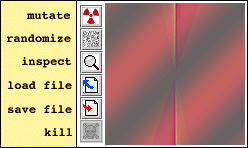
The Explorer Screen is where you breed the images. There are nine panels each containing a BioGraph and some buttons performing various functions on that specimen.
Mutate
Mutation is the standard way to evolve BioGraphs. Clicking a BioGraph's mutate button will create nine mutants of that BioGraph and place them in the explorer window. The mutation rate controls how many individual mutations are likely to occur in constructing a mutant. The higher the mutation rate, the more radically the offspring will differ from the parent. Keep in mind that mutations are often harmful, and too much mutation will likely result in unfit offspring.
Randomize
The randomize function will completely scramble the BioGraph's genome. This is useful for obtaining fresh genetic data to work with. The downside is that the majority of randomly created BioGraphs are unfit -- that is, they draw slowly and what they usually draw is uninteresting. It takes some patience to discover interesting BioGraphs, but the search is usually worthwhile. All BioGraphs must have their origins in a randomly generated ancestor.
Inspect
By clicking the inspect button, a new Inspector Window will appear containing an enlarged view of the BioGraph. The Inspection screen has many features (See below).
Load File
This will load a saved genome file into the designated BioGraph panel.
Save File
This will save the current BioGraph's genome to a file for later restoration.
Kill
Rendering BioGraphs can take a long time. Often, you can tell you are uninterested in a BioGraph long before it is finished rendering. By killing it, rendering on it will cease, freeing up the processor to render the remaining BioGraphs.
Mate
By clicking directly on a BioGraph, it will cause it to become highlighted. If two BioGraphs are selected, they may be mated together (Command Menu ==> Mate). All Biograph panels in the explorer window will be filled with the offspring of the two selected parents. Mating is an advanced feature and requires some knowledge to use effectively. See the FAQ for more details.
The Inspection Screen
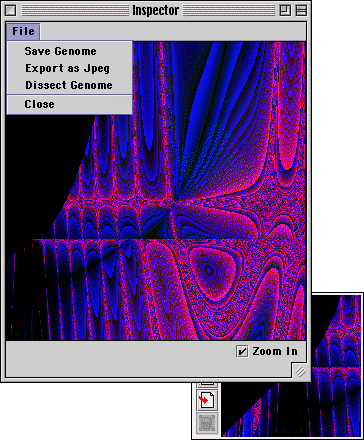
The Inspection Screen lets one explore a single BioGraph in detail. The BioGraph can be resized to any dimension and by clicking on the BioGraph one can zoom in or out of the BioGraph coordinates which were clicked on. The result can then be exported to a file as a jpeg, and the genome can be dissected and viewed.
The Preferences Screen
The Preferences Screen lets one configure parameters controlling aspects of
the genetic algorithm.
Mutation Rate
This controls the percentage of the genome which will be mutate during a mutation operation.
Macro Mutations
If Macro Mutations are allowed, more impactful mutations such as deletions and insertions will occur during a mutation.
Mutate on Mate
To add further variety during a mating operation, mutations can be allowed as well.
Crossover Amount
The number of crossovers affects the mating of two BioGraphs. The more crossovers, the more
the genomes will be spliced up and recombined. Generally, higher crossovers give smoother matings. Low crossovers give chunky matings.